How apps are versioned
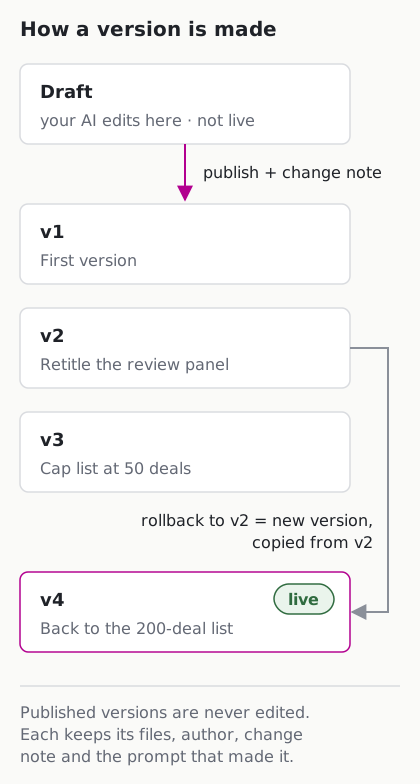
Every flurry app is a set of files, and every published change to those files is a new, numbered version. Old versions are never edited or deleted. Each one records who made it, why, and the request that produced it, so you can always answer “what changed, when, and who decided?” and go back in one step.
What an app is made of
An app is a small bundle of plain files:
| File | What it holds |
|---|---|
app.json |
The app’s name, the tables it reads and writes, and which queries feed which screens |
queries/*.sql |
Named SQL queries. The app reads data only through these |
writes/*.json |
Write rules: the only way the app can change a table. See how governed writes work |
src/** |
The React screens, built on flurry’s component kit |
actions/*.json, templates/*.xlsx |
Optional scheduled actions and export templates |
Because the whole app is files, a version is a complete snapshot: screens, queries and rules together. Rolling back the screens without the queries, or the other way round, is not possible by design.
Drafts and published versions
Your AI never edits a live app. When you ask for a change, flurry’s tools write to the app’s draft. You can open the draft, check it, and ask for more changes. Nothing reaches the people using the app until someone publishes.
Publishing copies the draft into the next version number and makes that version live. A published version is frozen: no tool rewrites its files afterwards.
Each version keeps:
- its files, with a content hash of the whole bundle
- the author
- the change note
- the request that produced it (the prompt your AI acted on)
- when it was published, and, for a rollback, which version it came from
Change notes
These changes need a change note: creating an app, editing its draft, publishing, rolling back, and moving it between stages. The note is checked the same way in the flurry app and in the tools your AI calls:
- It is required.
- It says something: at least three words (or six characters in Chinese, Japanese, Korean or Thai).
- It is not a placeholder. “update”, “wip”, “fix”, “minor changes”, “as requested” and about seventy others are rejected, in several languages.
- It is at most 280 characters.
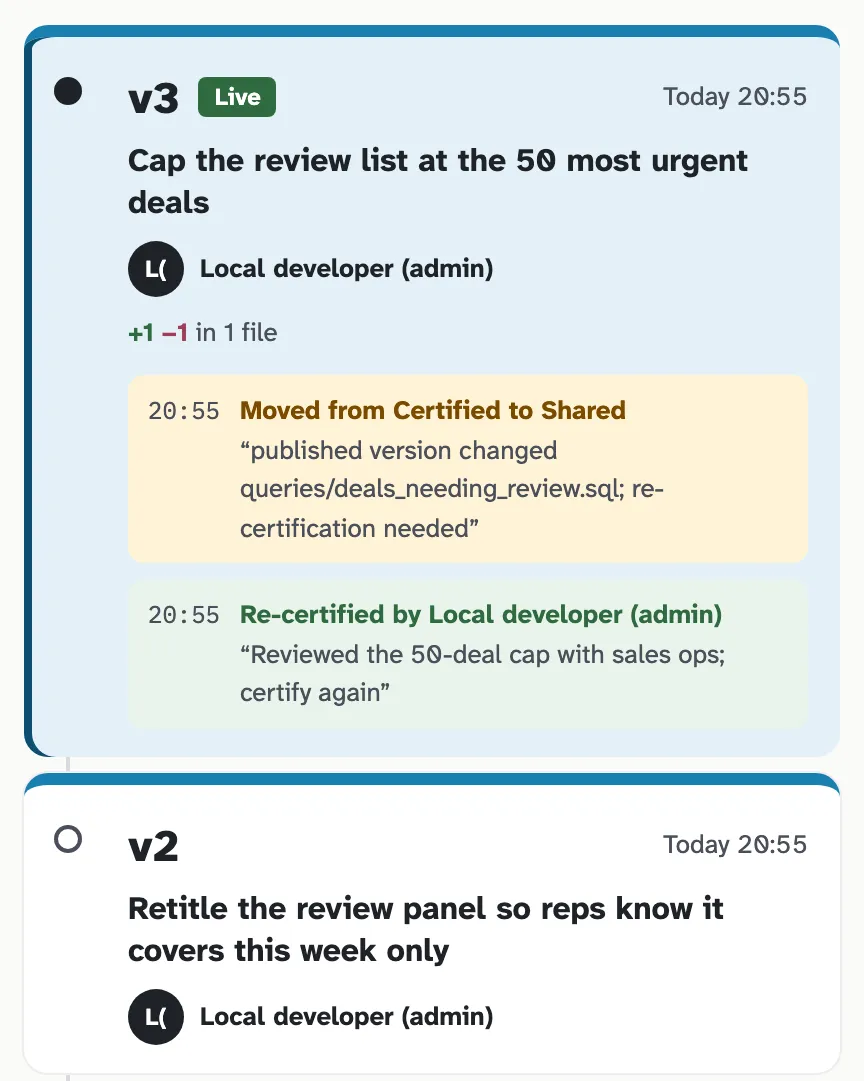
The Versions page then reads like a log a person wrote, not a list of hashes.
Every tool that changes an app also has a preview mode. Your AI can show you exactly what would change, including the diff and the validation result, before anything is written.
See what changed
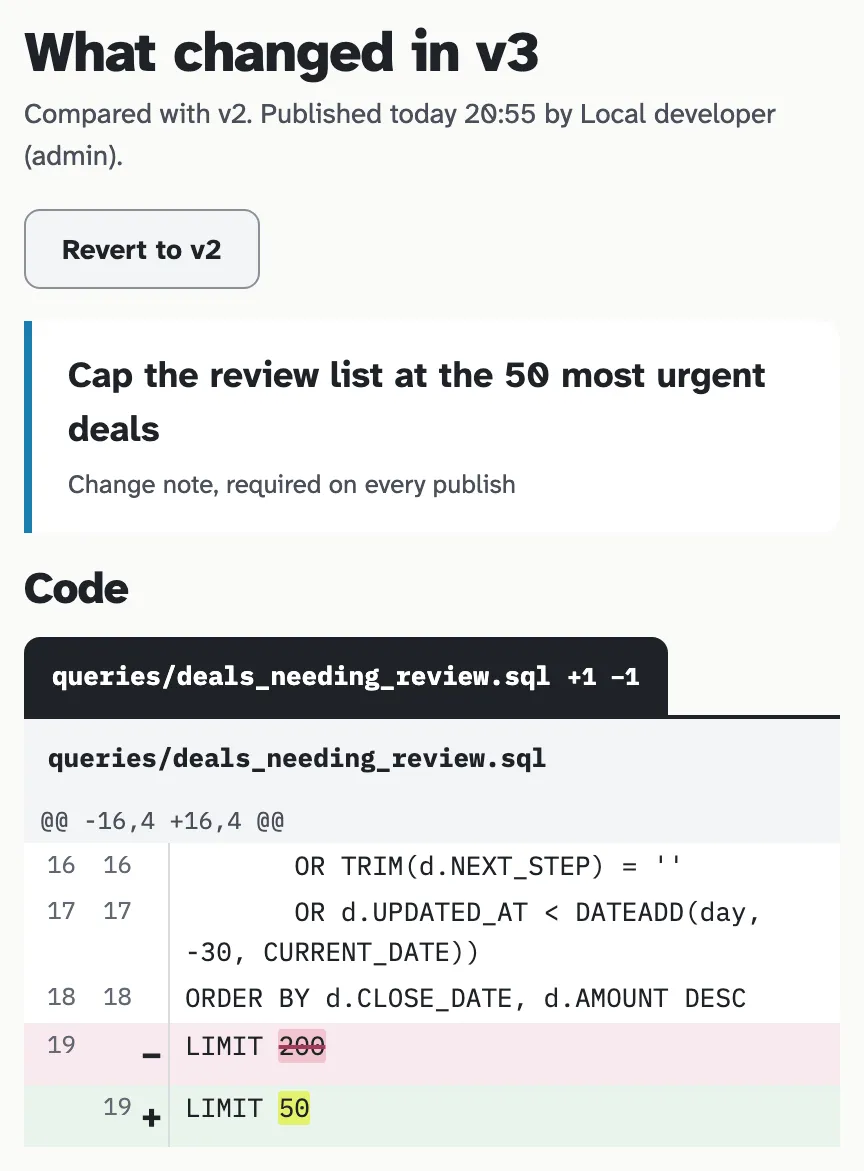
Compare any two versions, or a version against the current draft. flurry lists each file as added, modified or removed and shows the line-by-line diff. In the app, open History and pick the versions; your AI can ask for the same diff through the flurry_app_history tool.
Roll back
A rollback does not delete anything. It publishes a new version whose files are a copy of the version you chose, and records which version it came from. Version 3 stays in the history, and the rollback needs its own change note, so the log explains why you went back.
In the flurry app, Revert on the History page makes the version you are viewing live again (from the live version, it steps back to the newest earlier approved version). Your AI can roll back to any earlier version.
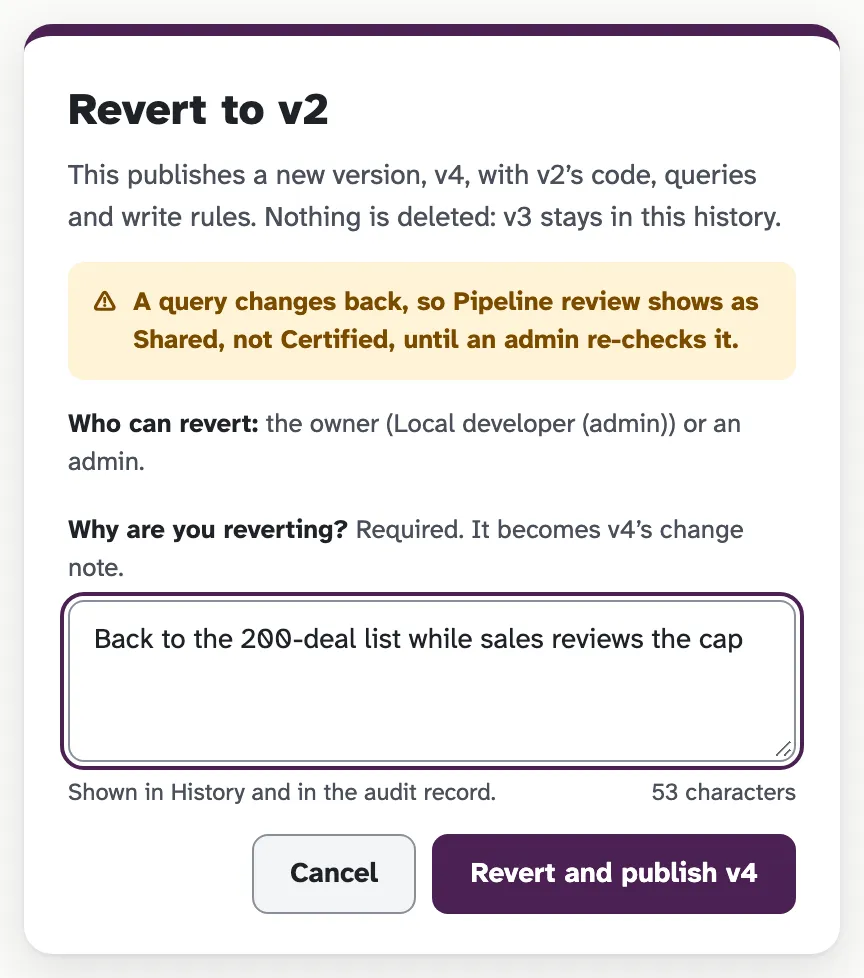
A rollback goes through the same checks as a publish, including approval and certification, described below. If going back changes a certified app’s queries, the Revert panel says so before you confirm.
Stages: from personal to certified
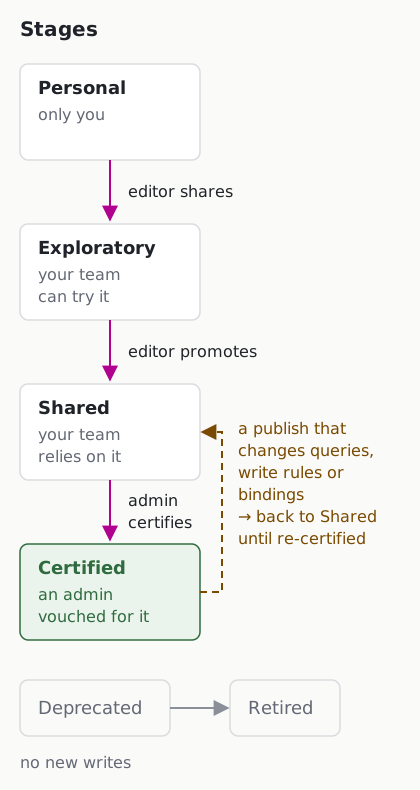
Not every app deserves the same trust. flurry moves an app through four stages, and the Library shows each app’s stage on its card:
| Stage | Meaning | Who moves it here |
|---|---|---|
| Personal | Only you use it | (new apps start here) |
| Exploratory | Your team can try it | An editor who owns or can edit the app, by sharing it |
| Shared | Your team relies on it | An editor who owns or can edit the app, by promoting it |
| Certified | An admin vouched for it | An admin, and only an admin |
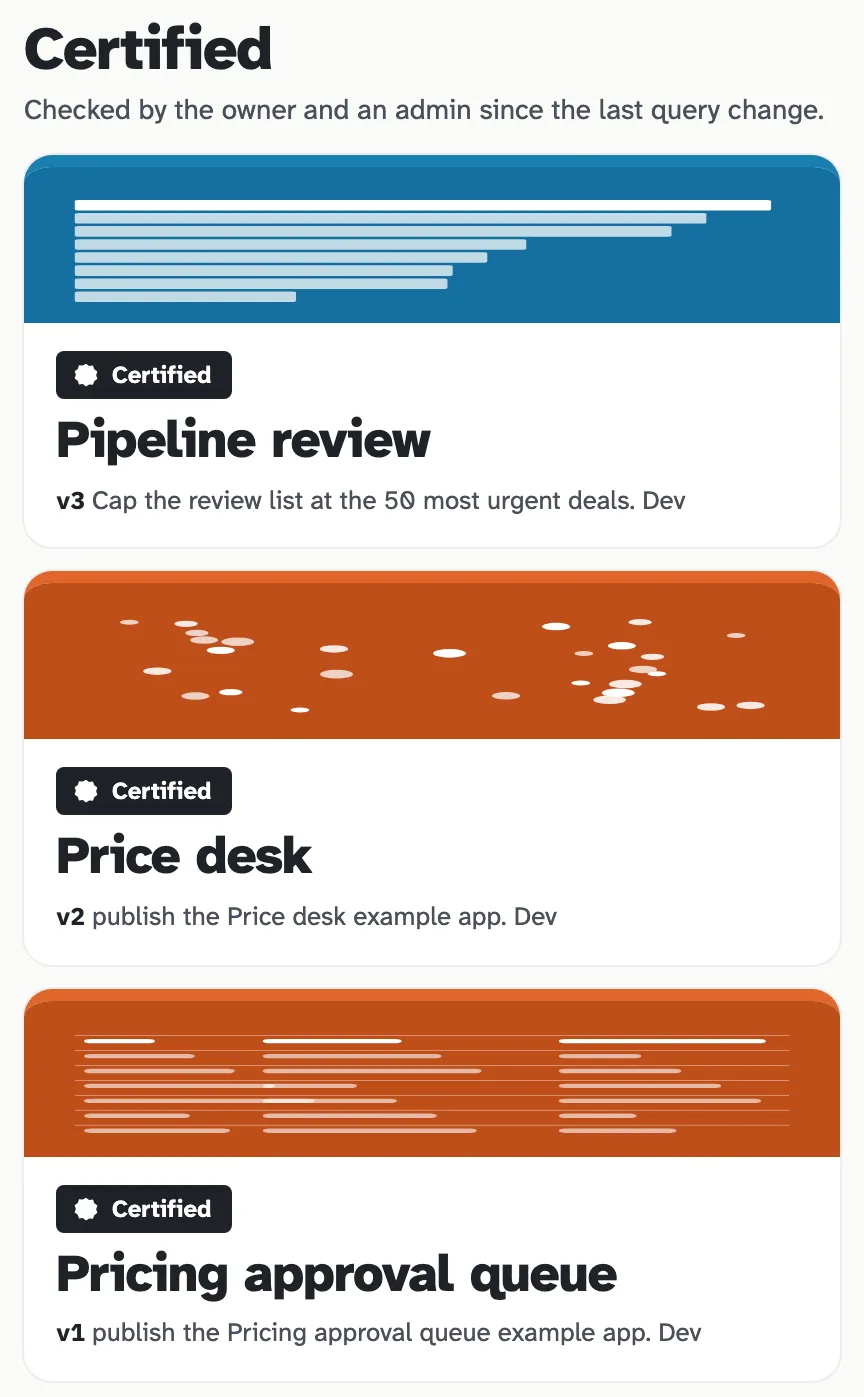
Certified apps sort first in the Library, so people find the trusted version of a report before the copies.
An admin can also turn on publish approval for certified apps, or for shared and certified apps. A publish in those stages then waits as pending until an admin approves it.
Certified means the data logic was reviewed
Certification is about the numbers, so it is tied to the files that decide them. When a new version of a certified app changes any query, any write rule, or the parts of app.json that bind queries to screens or declare the tables and writes it uses, flurry:
- publishes the version,
- moves the app from certified back to shared, and
- flags it as needing re-certification, with the reason.
Only an admin certifying (or approving) the app again clears the flag. A change to wording or layout alone keeps the app certified. If an admin has pinned the app’s stage, it stays certified and is flagged instead.
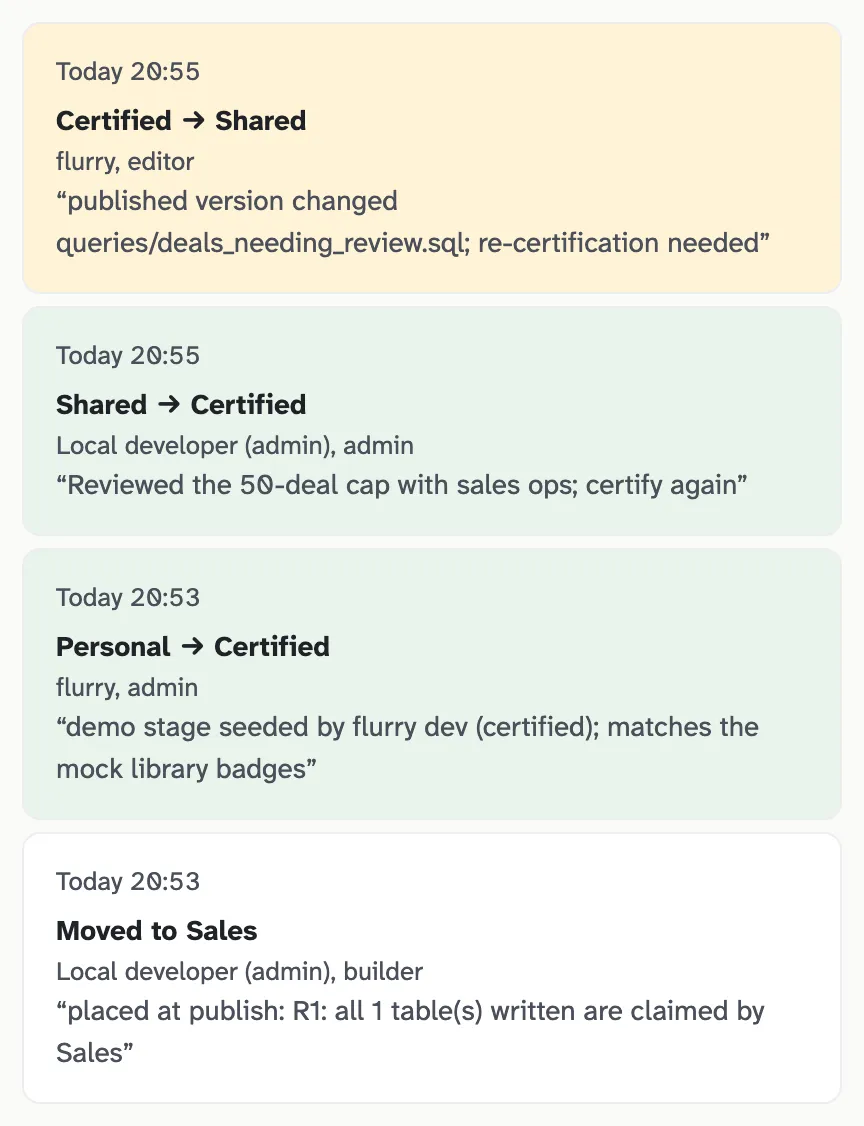
For example: on the Pipeline review app, a builder changed the review list’s row limit from 200 to 50. Publishing that version moved the app from certified to shared, with the reason “published version changed queries/deals_needing_review.sql; re-certification needed”. An admin then certified it again. Both steps are on the app’s Trust events tab.
Retiring an app
When an app is replaced, its owner or an admin deprecates it, optionally naming the app that replaces it, and an admin can later retire it. Deprecated and retired apps keep their full history but take no new writes. Either can be restored.
Related
- How governed writes work: the rules that let an app change data, and the audit row each change leaves.
- How flurry works: the short overview.
- Your first app: build one and publish version 1.